Before you start
- Your Facebook login. Use the account that manages your business on Facebook. No business set up on Facebook yet? You can create one in the window.
- Your phone, close by. For a number that isn’t on WhatsApp yet, Meta sends a code by SMS or call.
- On the WhatsApp Business app already? Keep it. Your chats keep working on your phone and also arrive in Frictionless. On regular WhatsApp, install the free WhatsApp Business app on the same number first.
1. Start in Frictionless
Open Integrations → WhatsApp and click Connect WhatsApp. For a number that isn’t on any WhatsApp app, click Use a new number instead. A Facebook window opens; log in if it asks.
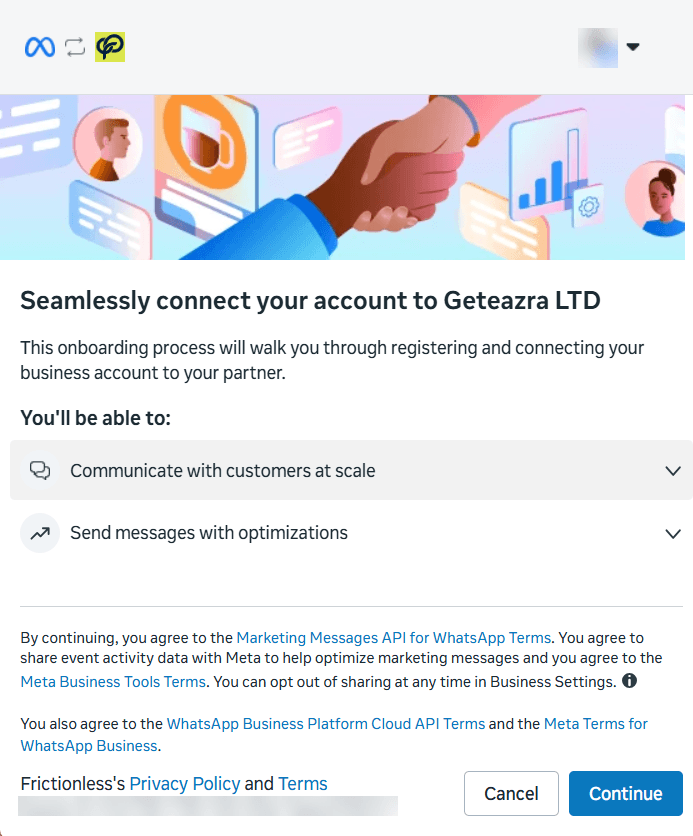
2. Click Continue
The window names Geteazra LTD, the company behind Frictionless. That’s expected: it’s the business Meta has verified for us.
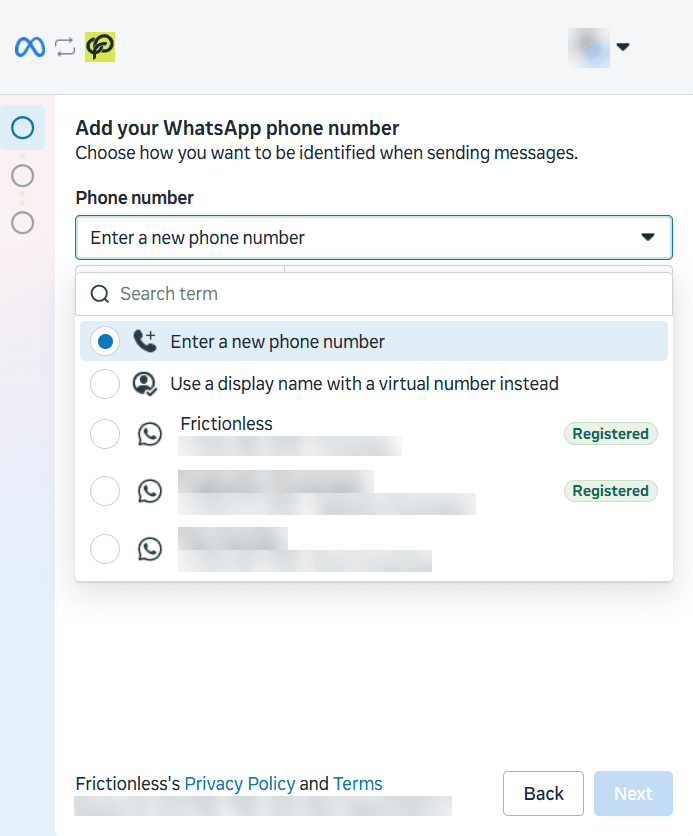
3. Choose your number
- A number marked Registered is already set up with Meta. Pick it and you skip the code.
- Enter a new phone number to add one. Meta asks for the name customers will see, then sends a code to the number. Type it in.
Use a real number your customers already know, then click Next.
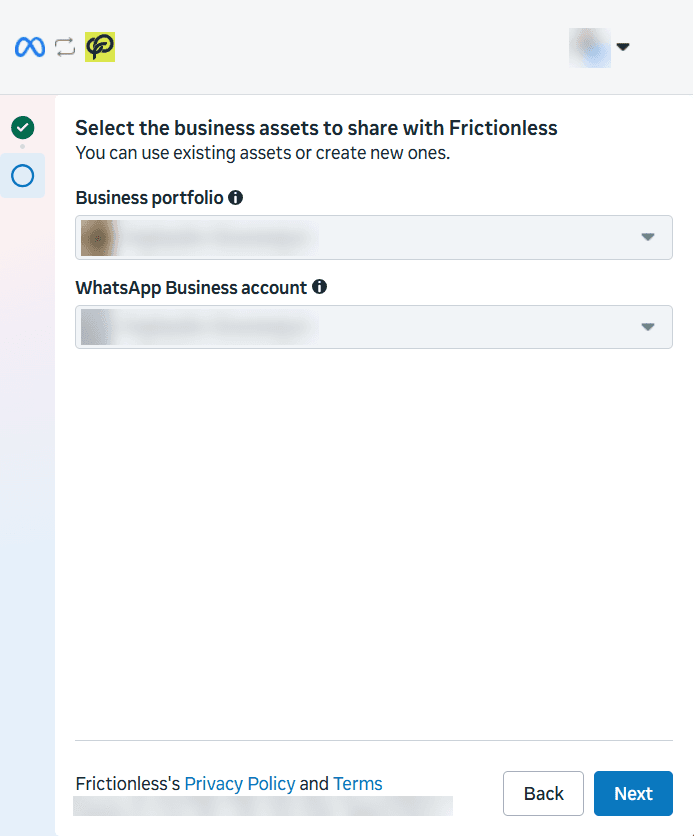
4. Check the business
Business portfolio is your business on Facebook. WhatsApp Business account is where the number lives. If you picked a registered number, both are filled in. Otherwise choose yours, or create new ones. Click Next.
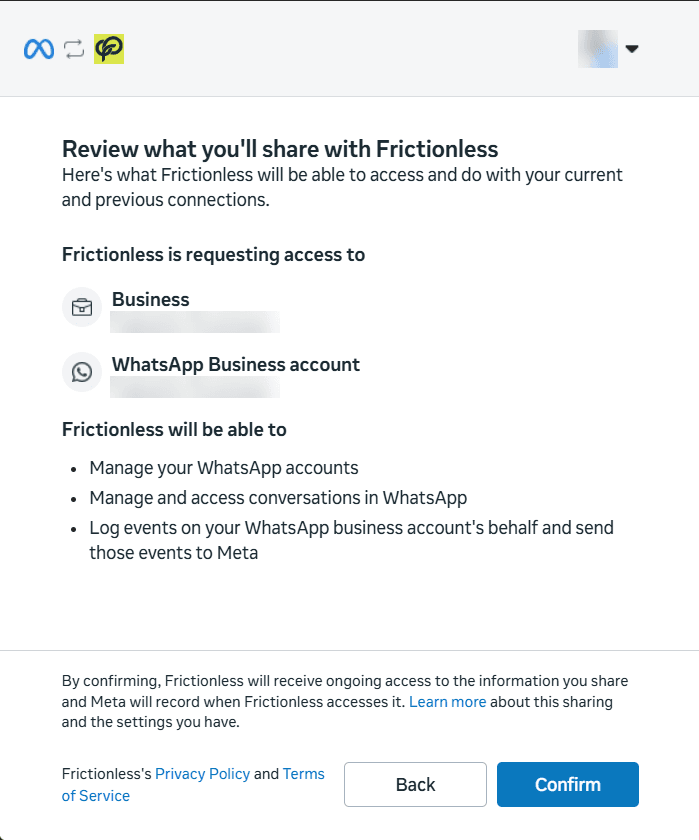
5. Confirm
Meta lists what Frictionless can do: manage your WhatsApp account and its conversations, so you can read and reply from your inbox. Click Confirm. The window closes and Frictionless shows Connected within a few seconds.
After you connect
- Send a test message from Integrations → WhatsApp, and reply to it from your inbox.
- The same page lists anything Meta still needs from you, such as approving your display name or verifying your business. Each item says what to do.
If it doesn’t work
- No window opens. Allow pop-ups for Frictionless in your browser, then click the button again.
- Meta says the number isn’t eligible. Use it on the WhatsApp Business app for a few days, then try again.
- You closed the window early. Nothing was connected. Start again from step 1.
Still stuck? Email michael@usefrictionless.com and we’ll help.